You’re looking at a page that should be performing better, and you want answers fast.
Maybe it’s a product page that slipped in rankings, a competitor’s post outranking yours, or a client page that isn’t converting.
You don’t need a full site crawl to start diagnosing.
SEOquake’s free Chrome extension audits any page and tells you what’s working (and what isn’t), all without leaving the page.
In this tutorial, I’ll walk you through an SEOquake workflow that takes you from triage to diagnosis in just three minutes:
- Triage: Open SEOquake’s Quick View pop-up for an instant SEO snapshot (1 minute)
- Diagnose & Decide: Switch to the report for deeper analysis and exports. Then, decide whether it’s a page edit or a wider issue that needs a full site audit (2 minutes).
What Is SEOquake?
SEOquake is Semrush’s free SEO Chrome extension for auditing any webpage’s technical signals, on-page SEO, linking strategy, and core Semrush metrics.
Install the extension, open any page, and click the SEOquake icon in your browser for faster, easier SEO research and analysis.
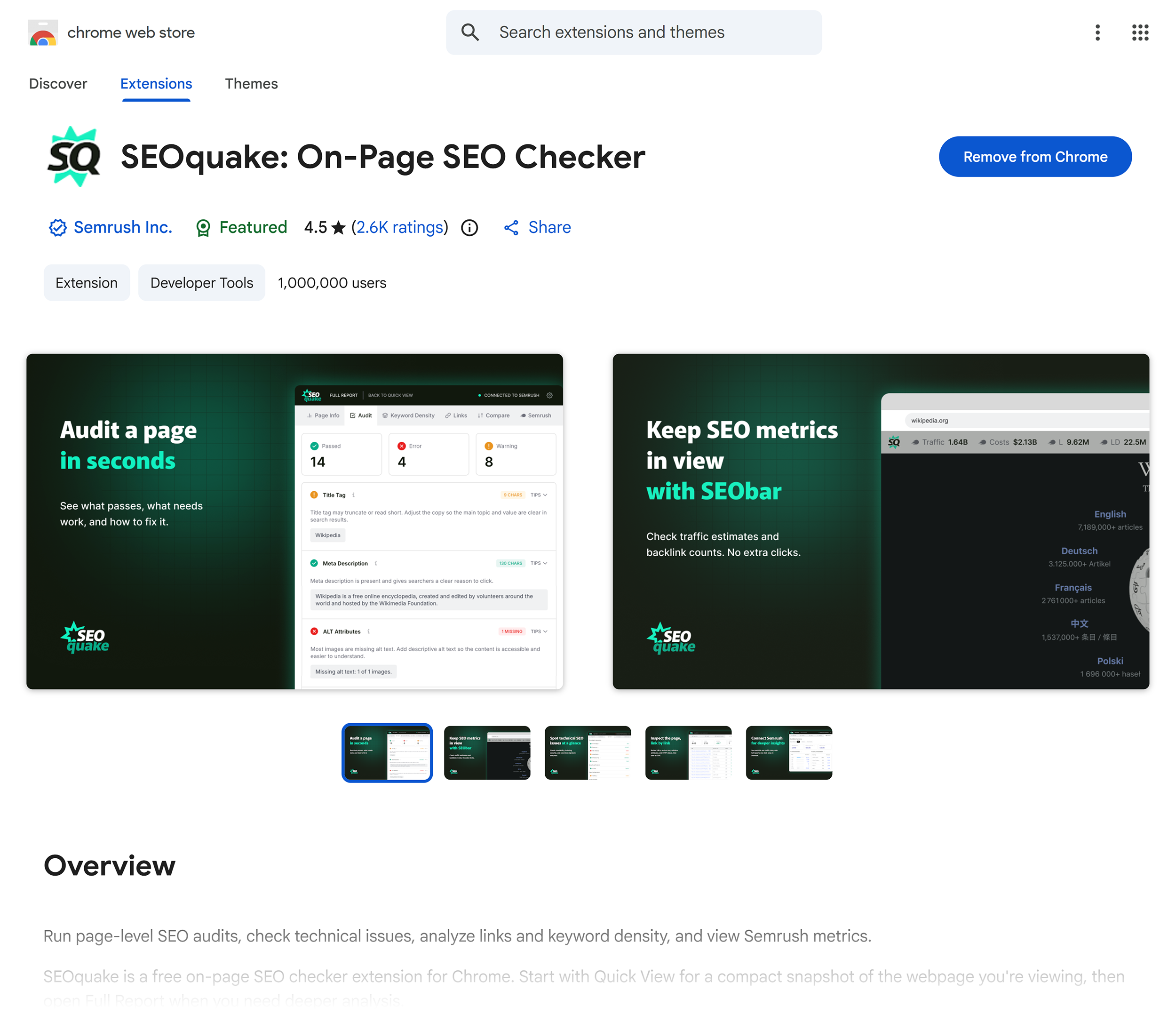
The SEOquake extension provides two ways to audit:
- The Quick View pop-up provides both page- and domain-level metrics for a fast snapshot of performance and on-page and technical issues
- The Full Report goes deeper with 28 on-page SEO audit checks and guidance on what to do for each one
Results are color-coded throughout every report, so you can quickly diagnose pages and prioritize fixes.
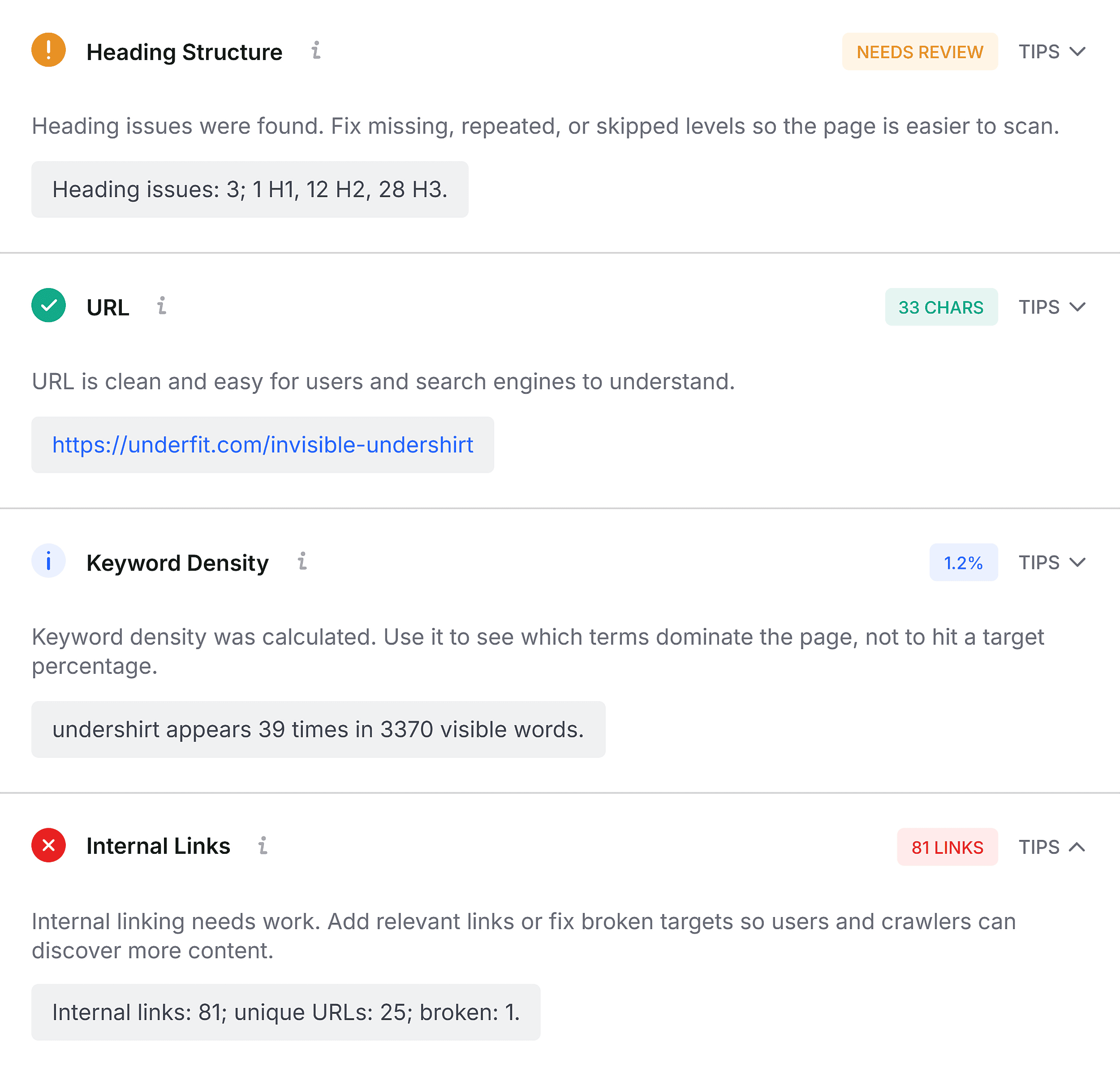
Here’s what each color tells you:
- Green is a pass
- Orange is a warning — worth a look, but not an emergency
- Red is a failure — fix these issues first
- Blue provides useful context for checks that don’t have a pass/fail answer
We’ll use these color cues to stay focused throughout the audit.
Triage Any Page’s SEO Issues with the Quick View Pop-Up (Minute One)
Triage is the first minute of SEOquake’s three-minute page audit.
In 60 seconds or fewer, you’ll answer this question: Is anything obviously wrong with this page?
The Quick View pop-up has five tabs:
- Page Info: Title tag, meta description, canonical, and robots.txt status
- Content: Heading structure, keyword density, and image alt text
- Audit: Technical and page-level checks color-coded by severity
- Schema: Detected structured data types and social preview information
- Semrush: Domain-level organic search traffic, traffic cost, and backlinks, plus page-level URL backlinks
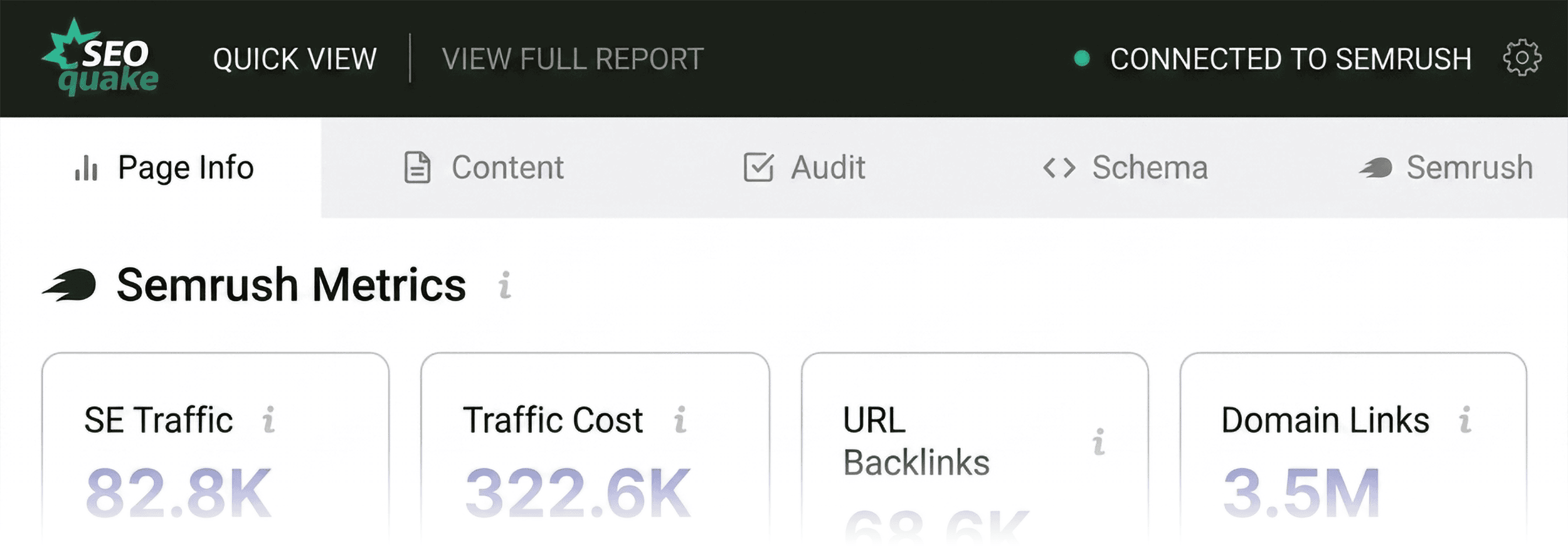
I’ll focus on three tabs: Page Info, Audit, and Content (about 20 seconds per tab) to get a fast read on UnderFit’s product page.
Start with Page Info for Core SEO Elements
SEOquake’s Page Info tab is a great starting point because it provides a quick overview of key SEO elements.
I open the pop-up on UnderFit’s page and assess the results.
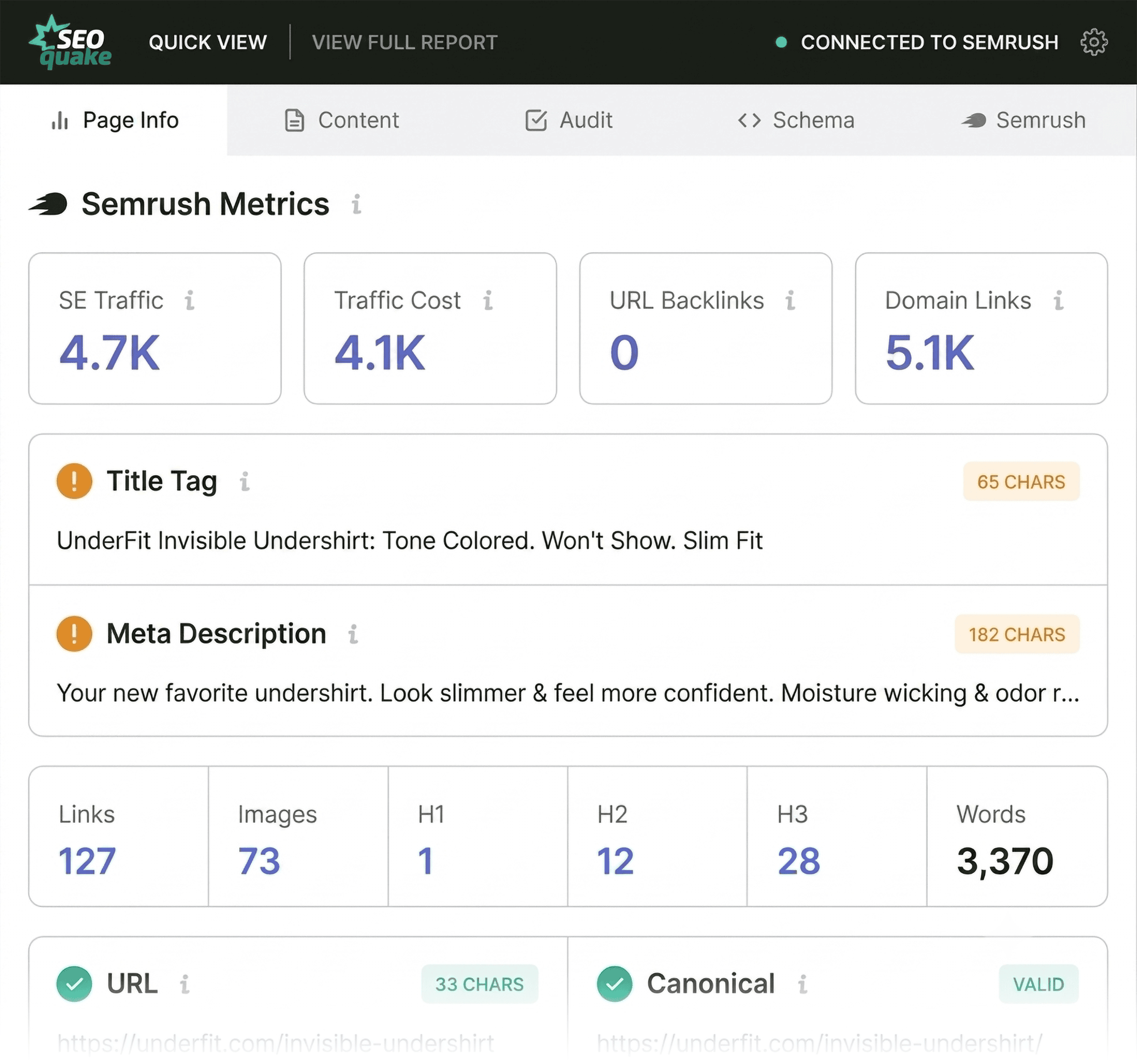
This is a quick scan, so I don’t overthink it.
The five things I prioritize:
- Title tag and meta description: Are both present? Are the character counts within range?
- Canonical: Is it pointing to the URL I want indexed?
- Robots.txt: Does the file allow crawlers to access the page?
- Schema.org markup: Is structured data detected and valid?
- Link, image, and heading counts: Do the numbers fit the page type?
Then, I quickly scan for anything marked red — or anything that doesn’t line up with on-page SEO best practices.
On UnderFit’s page, SEOquake flagged the Schema.org markup in red.
The reason points to JSON-LD errors, which means search engines may not parse the structured data correctly.
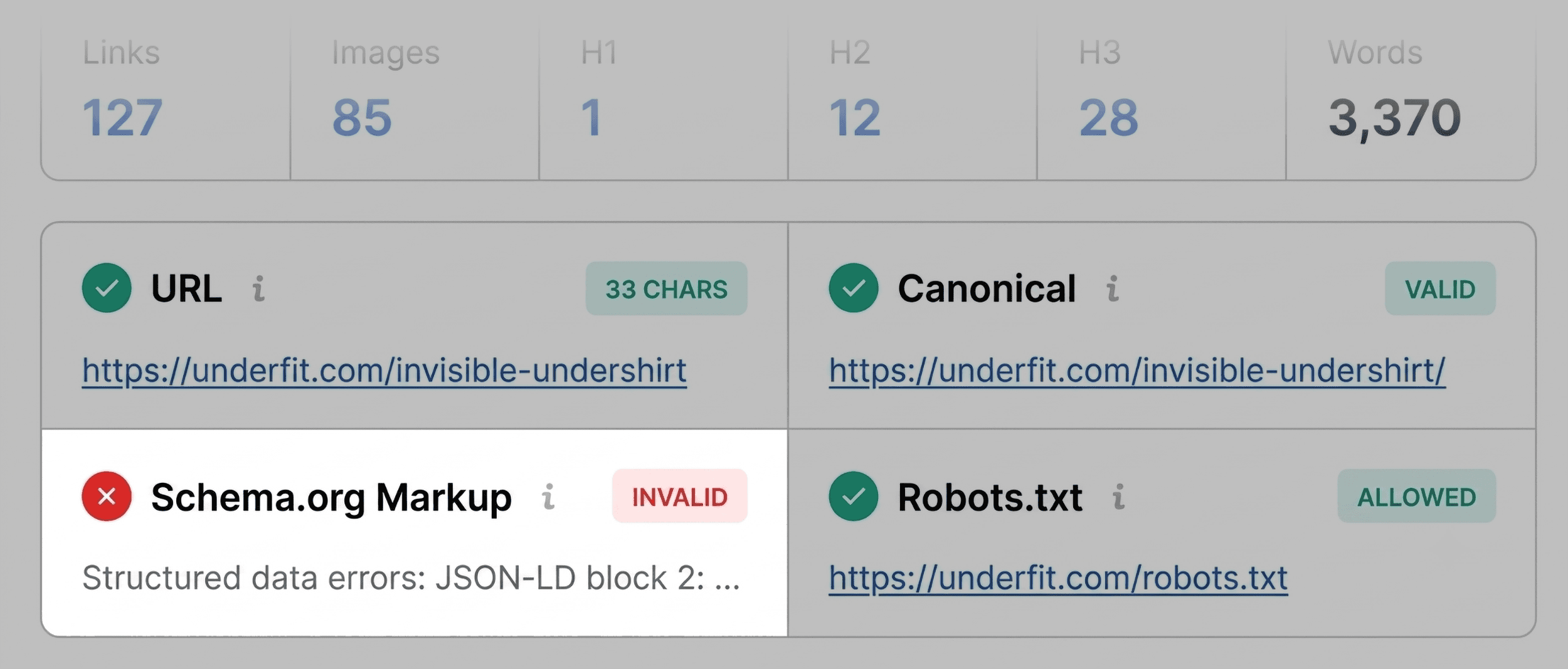
For a product page, that’s a real concern.
Invalid product schema can make the page ineligible for product rich results, including price, availability, and ratings in search.
So, that’s going straight onto my list to check in the Full Report.
The rest is mostly clean aside from two elements:
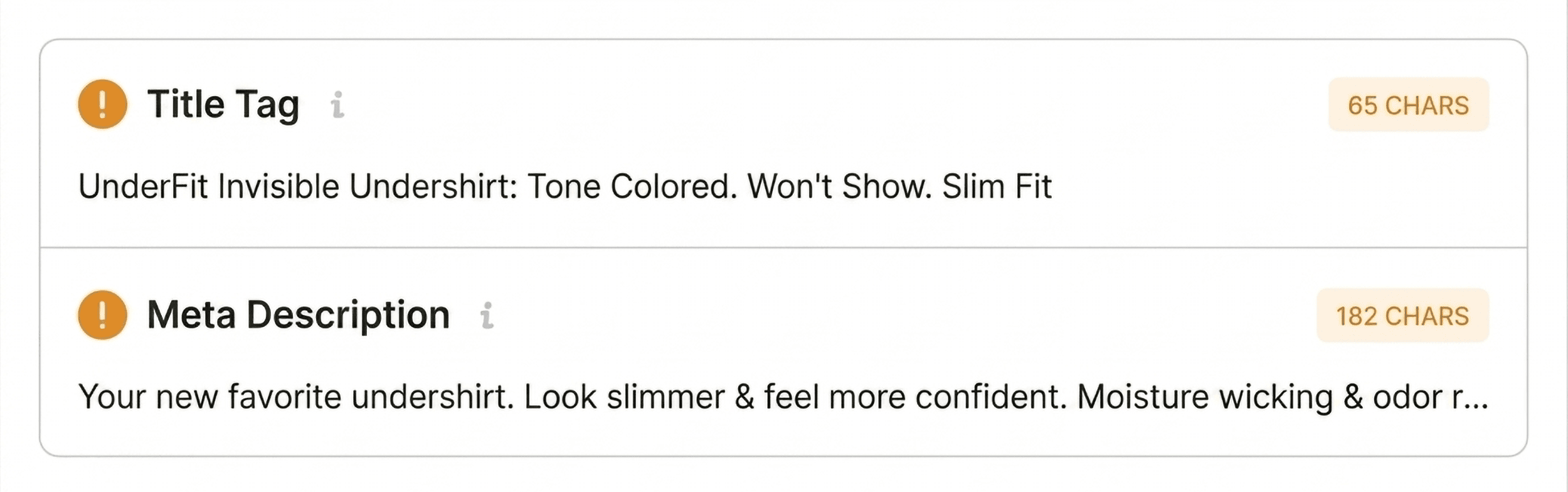
- Title tag (65 chars): Present but flagged orange — slightly outside the ideal range
- Meta description (182 chars): Present but flagged orange — outside the ideal range
These aren’t blockers, but I note them down.
Scan the Audit Tab for Technical Problems
Some issues don’t surface in Page Info, so I go to the Audit tab next.
SEOquake’s Audit checks for technical SEO essentials, including:
- Crawling & Indexation
- Security & Protocol
- Page Configuration
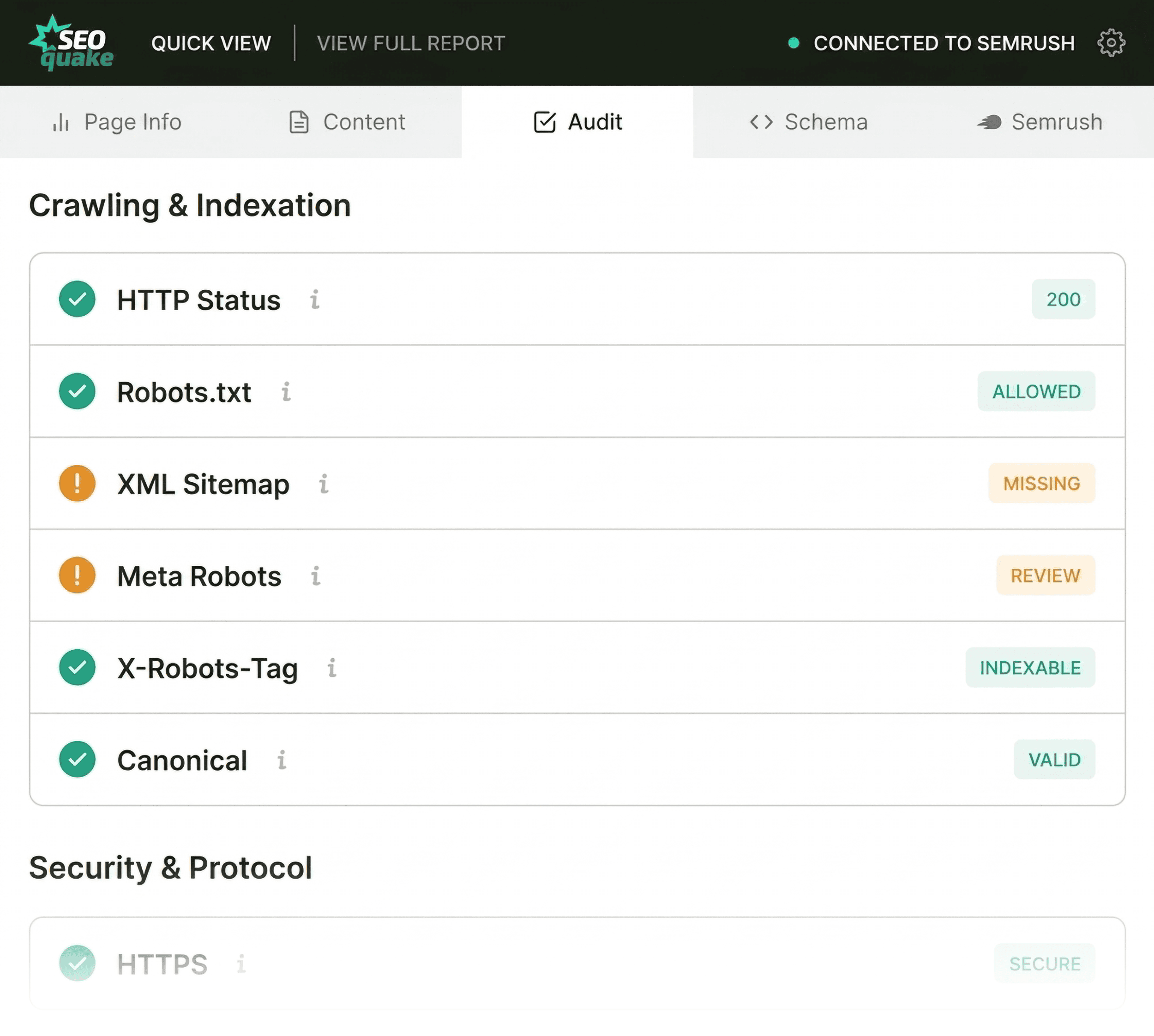
On the UnderFit page, everything is green or orange.
That usually means there’s no obvious technical emergency. But orange warnings still require a judgment call.
I’ll evaluate anything in orange against what I know about the site and the SEO risk.
For this page:
- XML sitemap: Flagged as missing, so I’ll verify the sitemap exists and includes this URL
- Meta robots: Flagged orange for review. A conflicting directive can block indexation, so it’s worth a closer look.
- Hreflang: Shows zero tags, but I wouldn’t worry about that for a U.S.-only store

With technical issues noted, I move on to the Content tab.
Review the Content Tab for Structure and Keywords
Next, I open the Content tab to check whether the page is structured clearly.
Content structure helps users navigate the page and can make it easier for search engines and AI systems to interpret it, so this is worth double-checking.
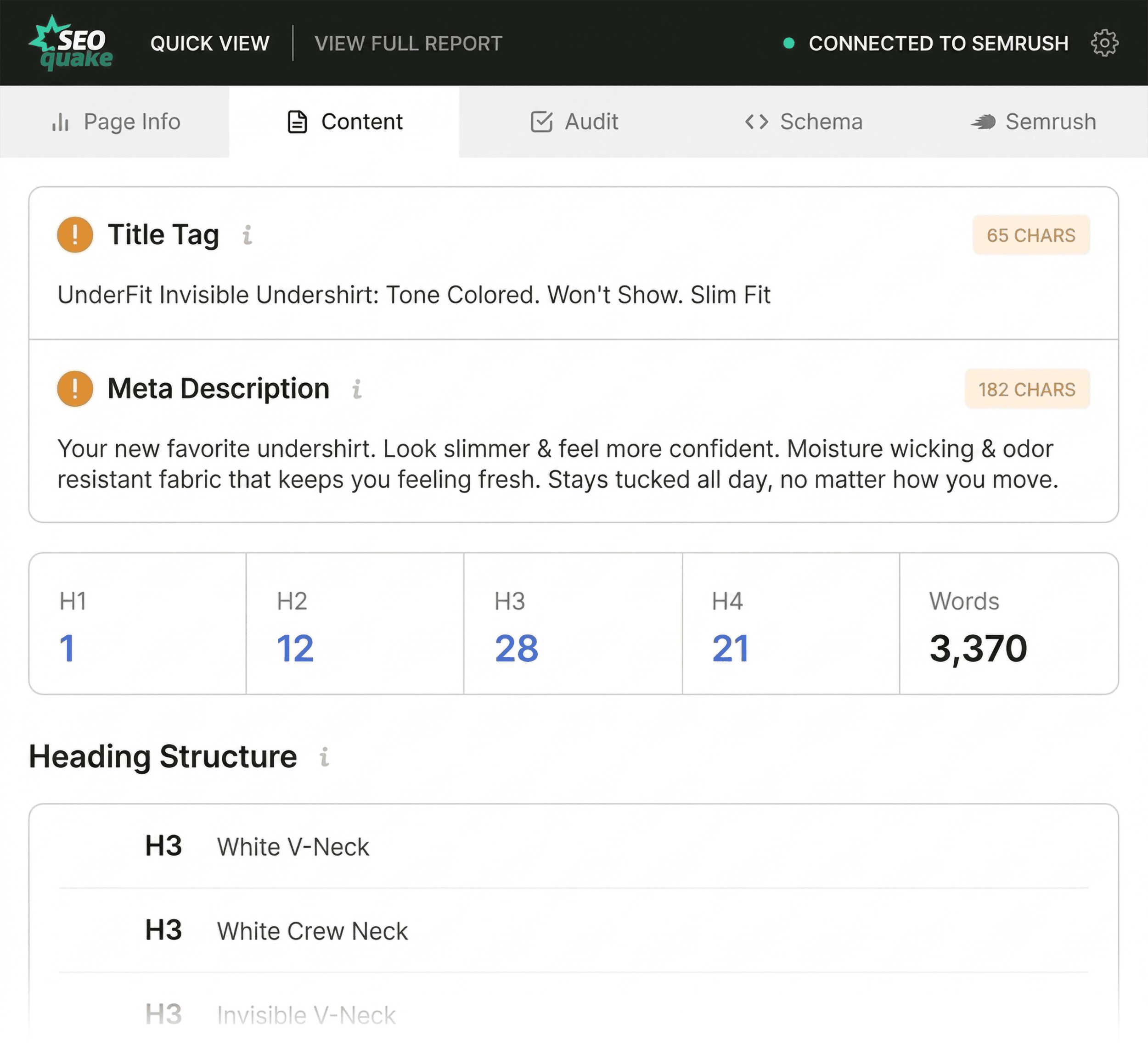
In the Content tab, I check:
- Title tag and meta description: Are both present, and are the character counts within range?
- Heading and word counts: Do the H1/H2/H3 distribution and total word count fit what I’d expect for a product page?
- Heading Structure: Is there one clear H1, and do the headings follow a logical hierarchy?
- Keyword Density: Do the top terms match the page topic, and do important terms appear in the title, meta description, and H1?
- Images: How many images are missing alt text or flagged as oversized?
Seeing UnderFit’s heading structure laid out makes me pause.
The H1 appears way down the page, and the hierarchy jumps levels throughout — going from H1 straight to H4, for example.
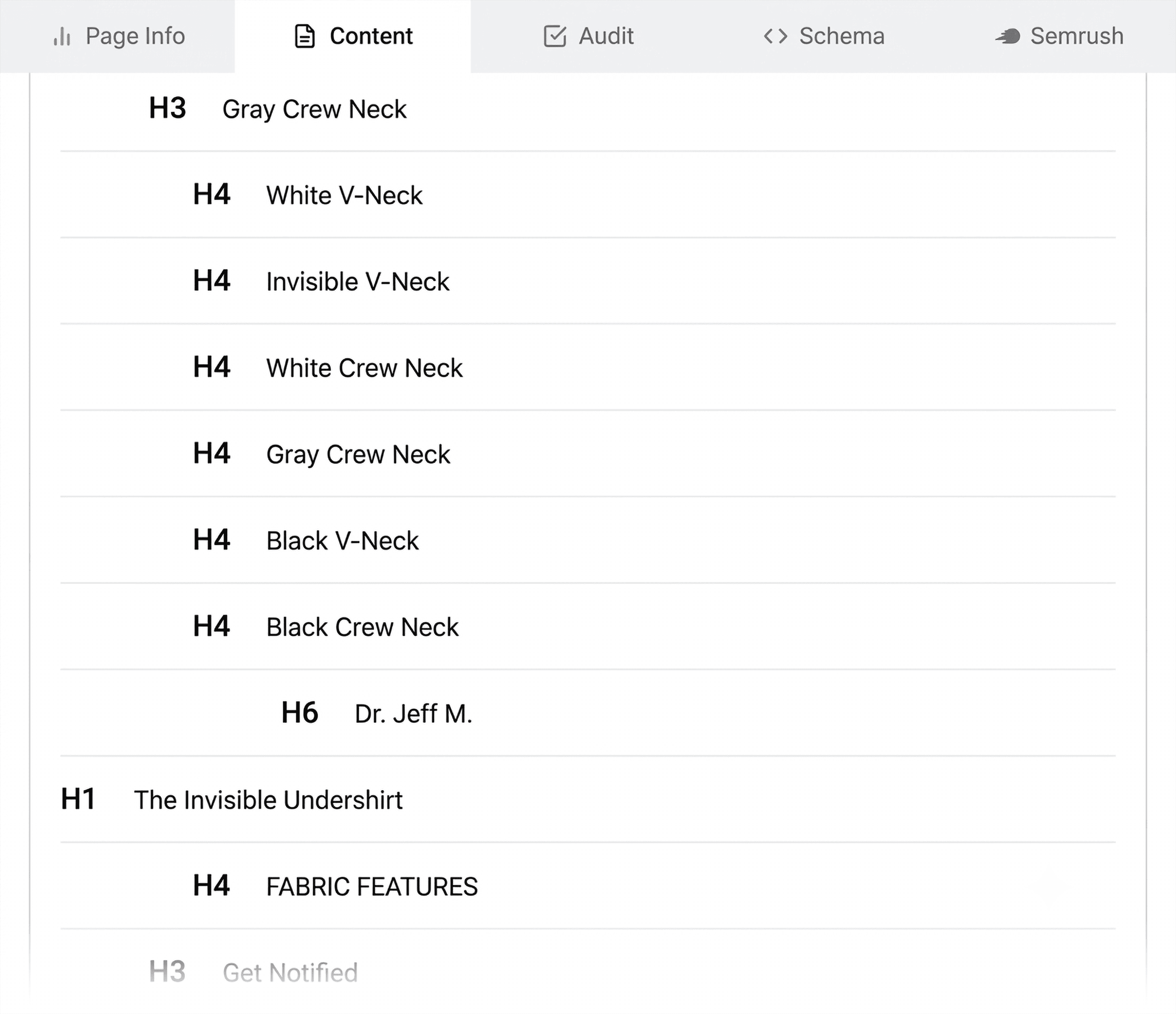
That’s worth reviewing for accessibility, reader navigation, and overall content clarity.
The image summary also flags that 36 images are missing alt text.
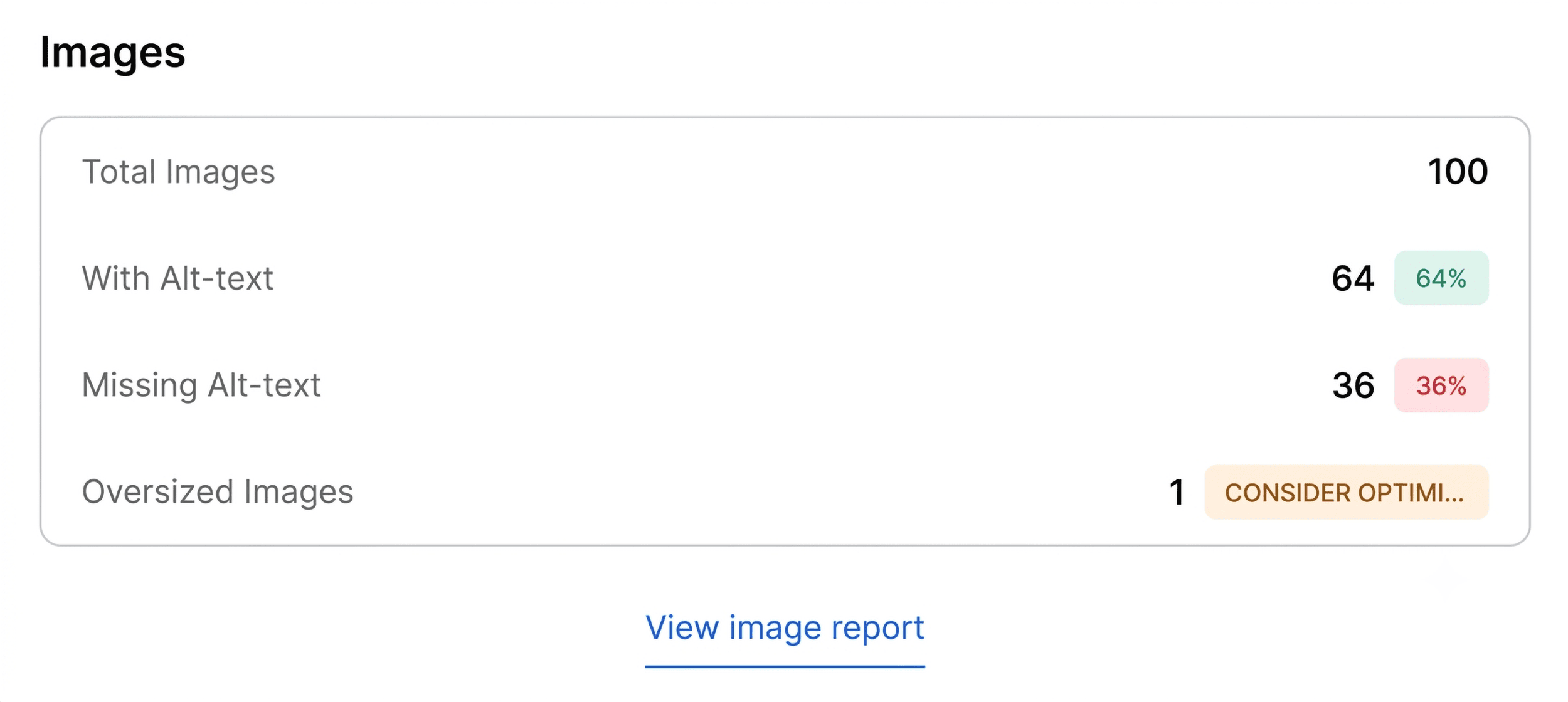
Since images do a lot of selling on a product page, I’ll look into this further.
Missing alt text gives search engines less image information and makes the page less accessible to shoppers.
Neither is a blocker, but I’ll check both in the next step of the audit: Diagnose.
Diagnose Issues with the SEOquake Full Report (Minutes 2–3)
In the first minute of the audit, I found a few issues on UnderFit’s product page that I want to investigate in SEOquake’s Full Report.
In the next two minutes, I’ll diagnose the cause of each flag. Then I’ll decide whether I can fix the issues at the page level or need to run a site-wide audit.
I click “View Full Report” at the top of SEOquake’s Quick View pop-up to open the panels.
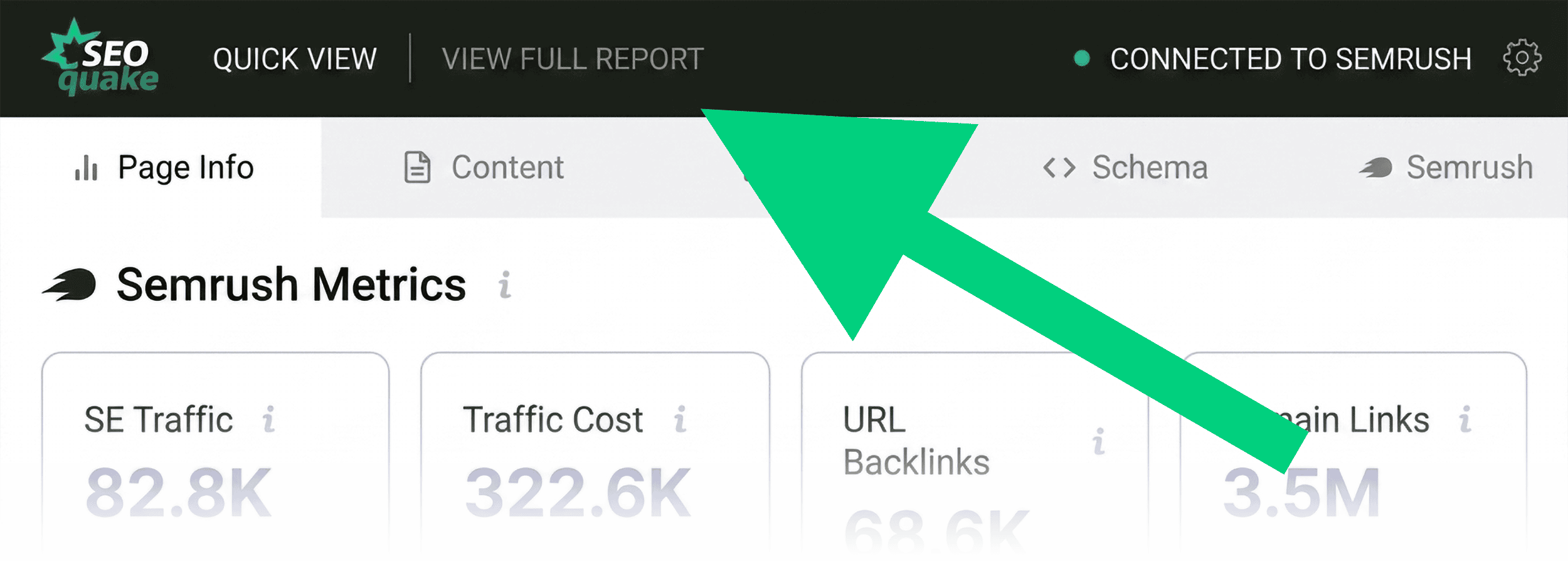
The Full Report has six panels:
- Page Info: Basic page signals, technical snapshot, and public Semrush metrics
- Audit: Technical SEO checks with fix guidance
- Keyword Density: Key terms by phrase, length, density, and prominence
- Links: Internal and external links metrics
- Compare: URL or domain comparison
- Semrush: Domain and page data and metrics
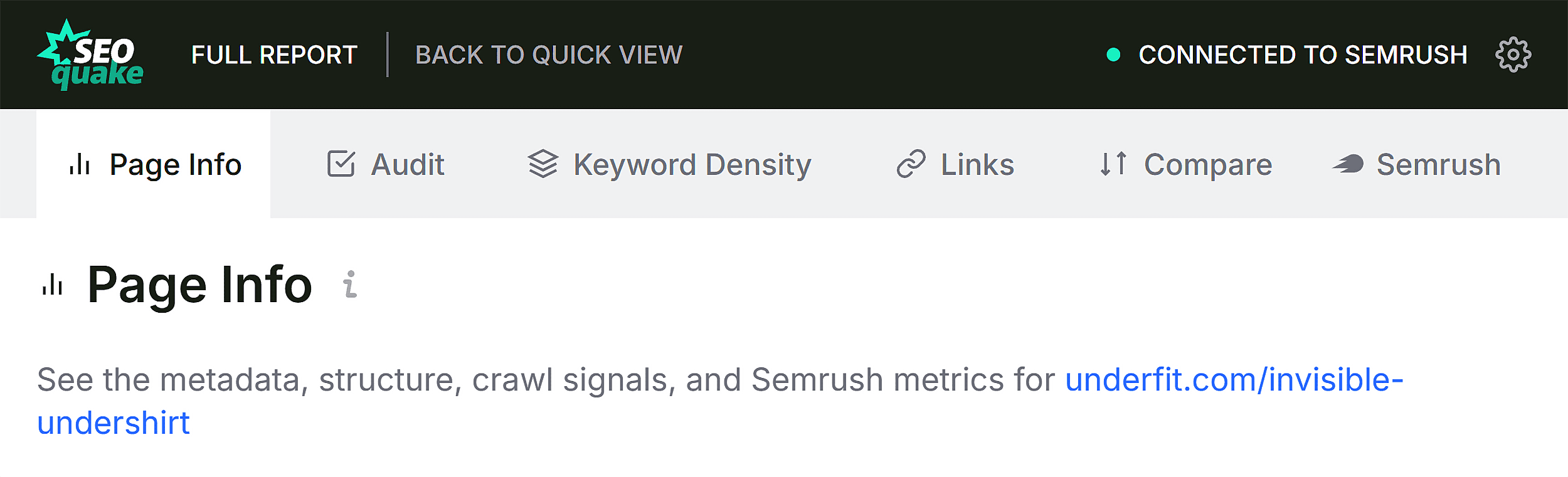
I’ll walk you through a few of the Full Report panels to give you a quick overview.
But when you run your own audit, go directly to the reports that match the flags you found.
Dig Deeper into Technical Issues in the Full Audit Panel
Since SEOquake identified a few technical issues, I’ll start with the Audit panel.
The full Audit covers crawlability, indexation, meta robots, mobile compliance, sitemaps, and schema.
It gives me a clearer sense of how serious each flag is and what to do about it.
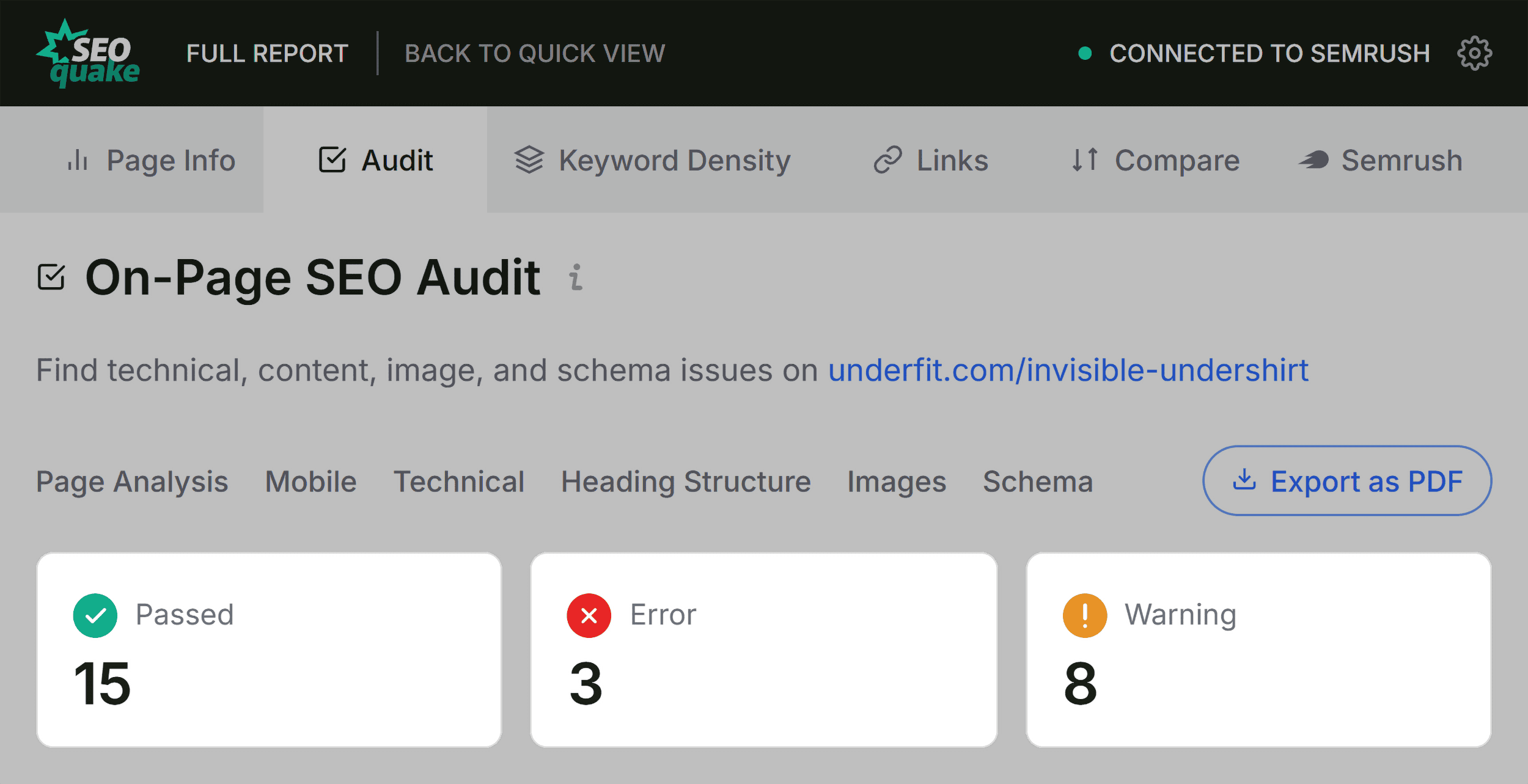
I use the menu to jump straight to the flags rather than scrolling through everything:
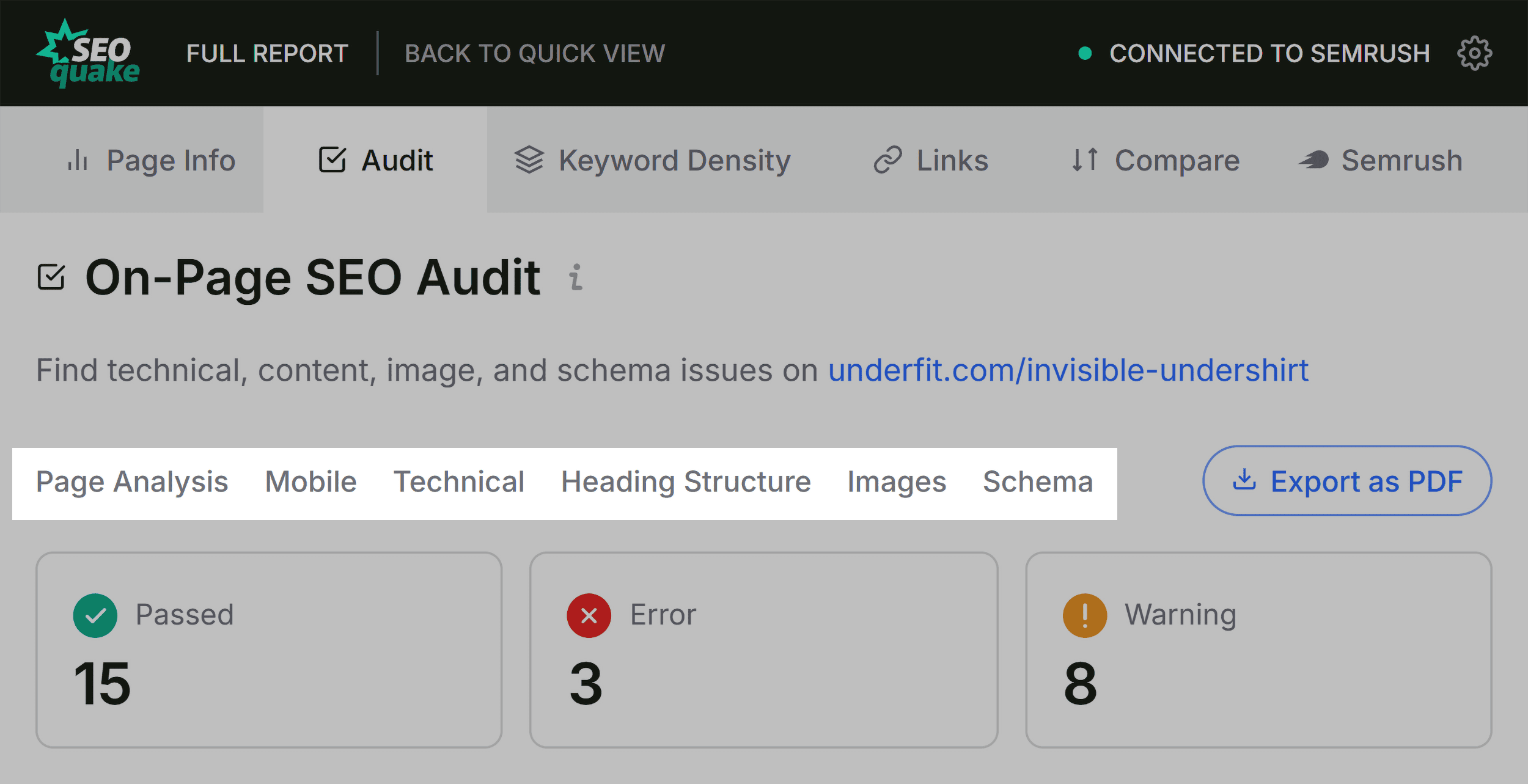
For each flag, I’ll do the following:
- Click the “i” to see what the check measures
- Check the color-coded status to see what SEOquake found
- Expand “Tips” for guidance on what to do next
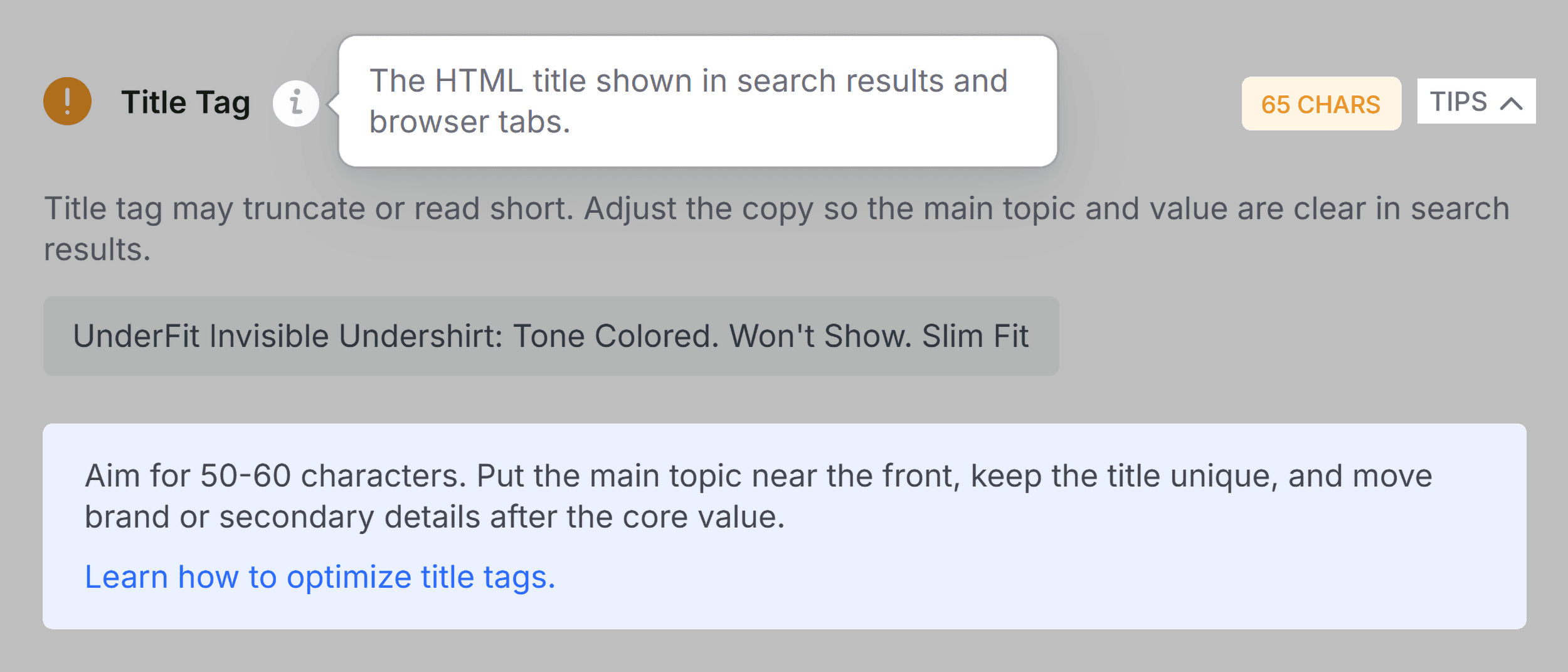
For UnderFit, I check the XML sitemap warning first.
Under Technical Compliance, SEOquake confirms that “https://underfit.com/sitemap.xml” exists but is not clearly linked.
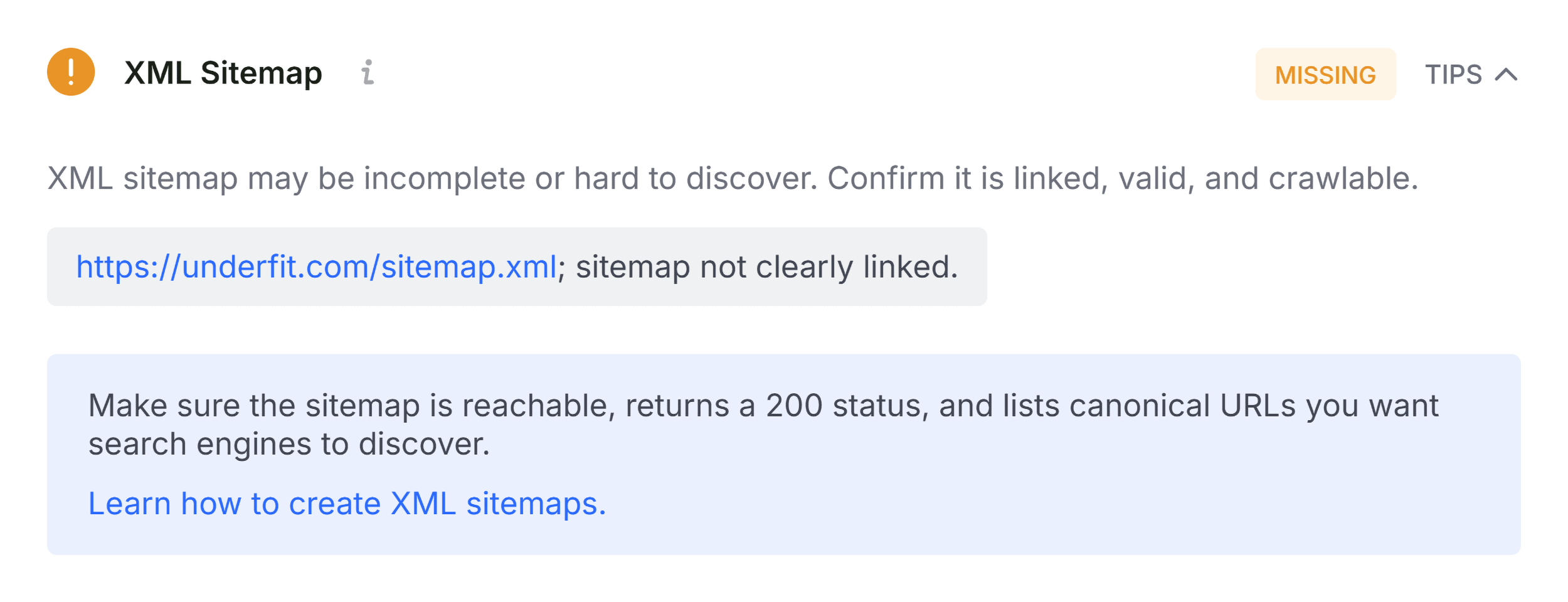
That’s definitely going on my fix list, as it could affect this page’s discoverability.
Triage also flagged UnderFit’s Schema.org markup as invalid, so I’ll check the Schema section next.
SEOquake shows green, meaning it’s detected markup on the page.
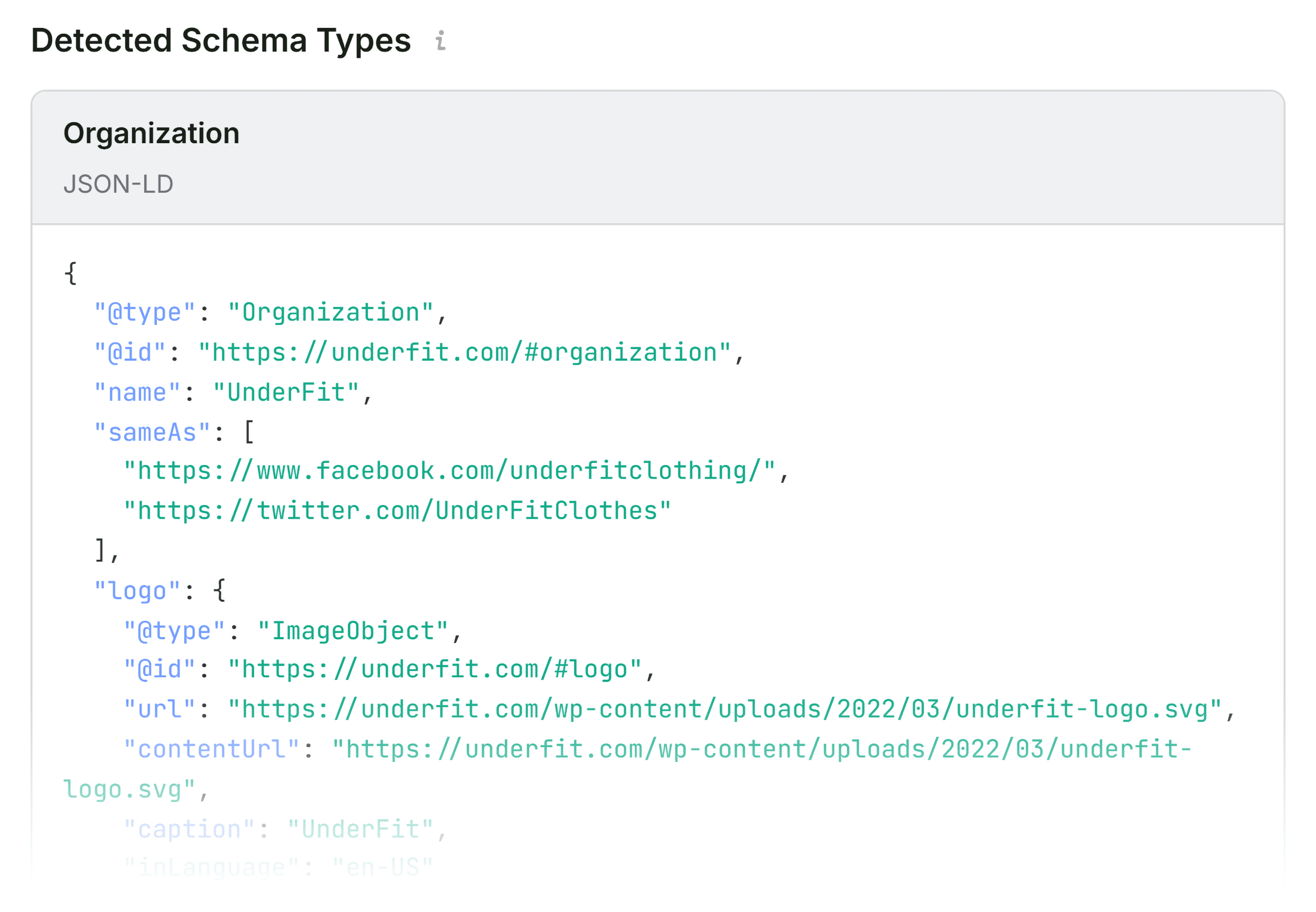
I need to see if that’s valid, so I click “Test in Rich Results.”
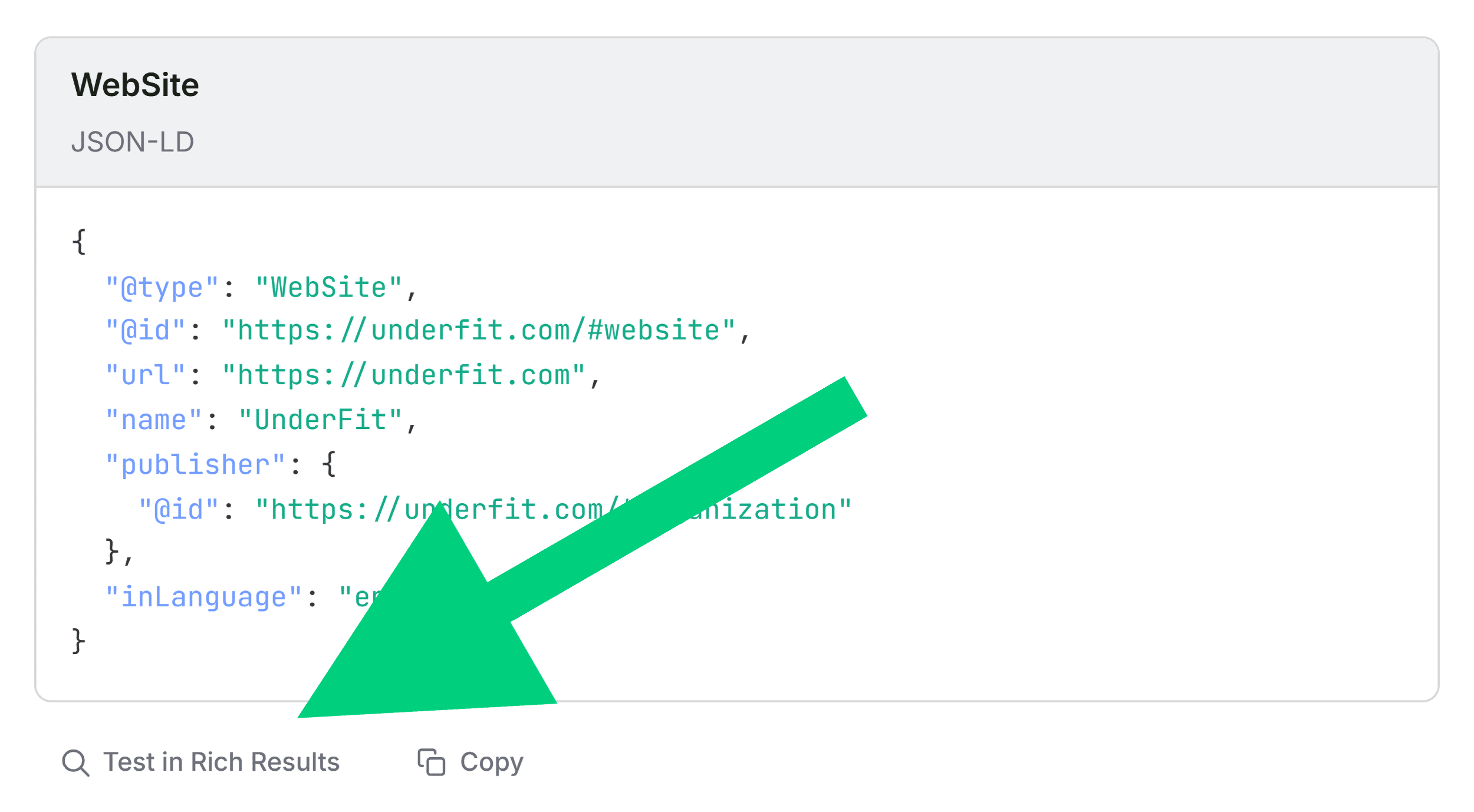
This opens Google’s Rich Results Test, which runs the page automatically.
It detects 3 invalid items.
That confirms what triage suggested, so it goes onto my fix list, too.
After that, I work through the remaining flags the same way — including the heading hierarchy issues and missing alt text from triage — adding actionable items to my list.
Spot Topic Coverage Gaps in the Keyword Density Panel
If a page isn’t performing the way you’d expect, Keyword Density is worth a quick look.
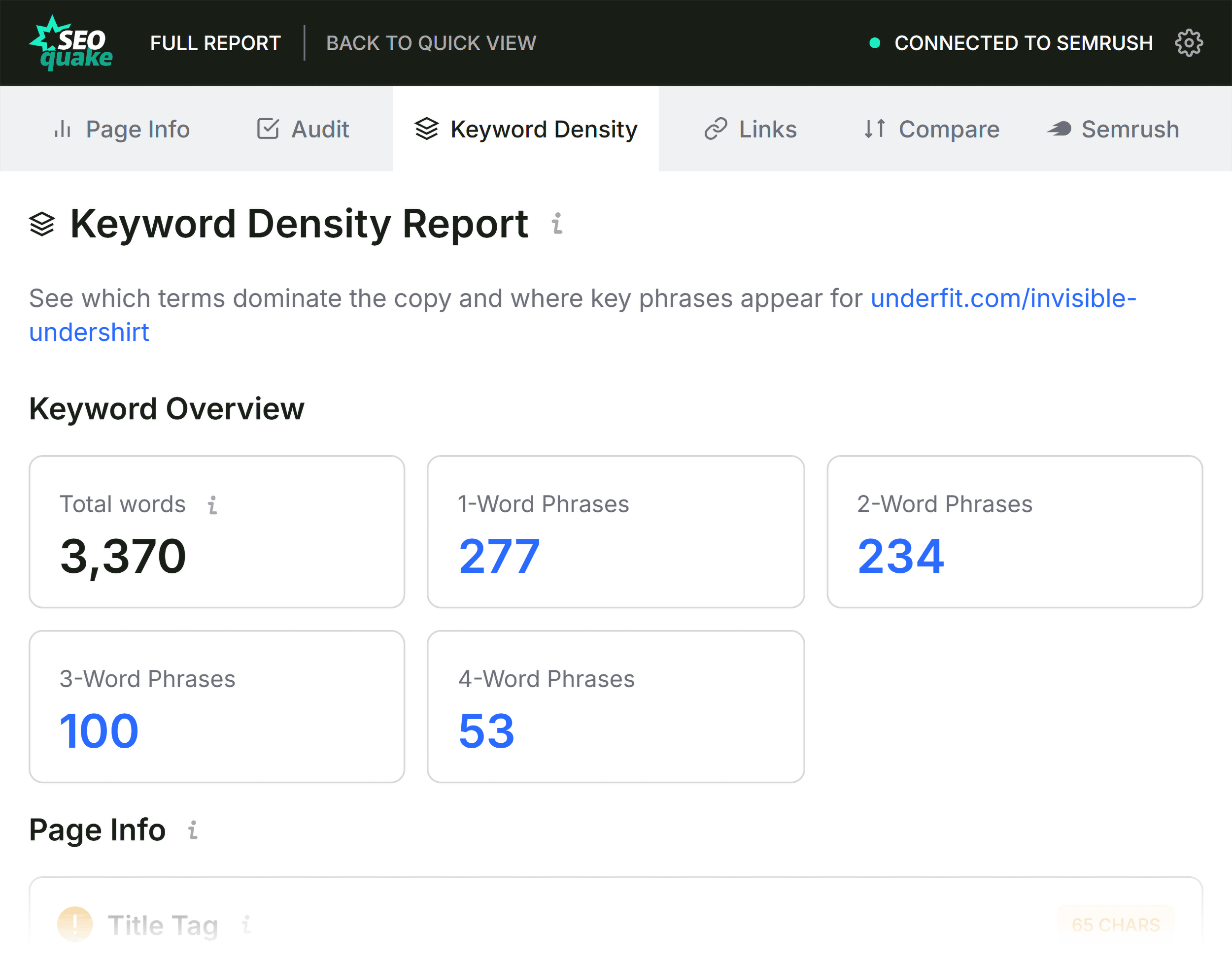
It tells you which terms appear most frequently in the page’s visible content and whether the topic coverage looks right for the page type.
For UnderFit, I start with the Keyword Cloud to get a quick read on what the page is about.
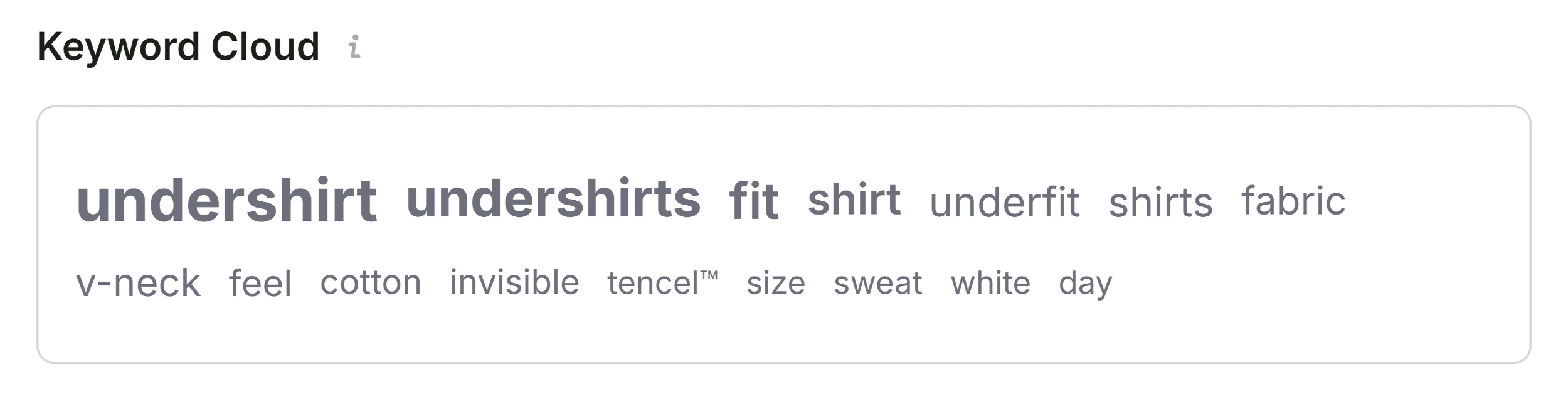
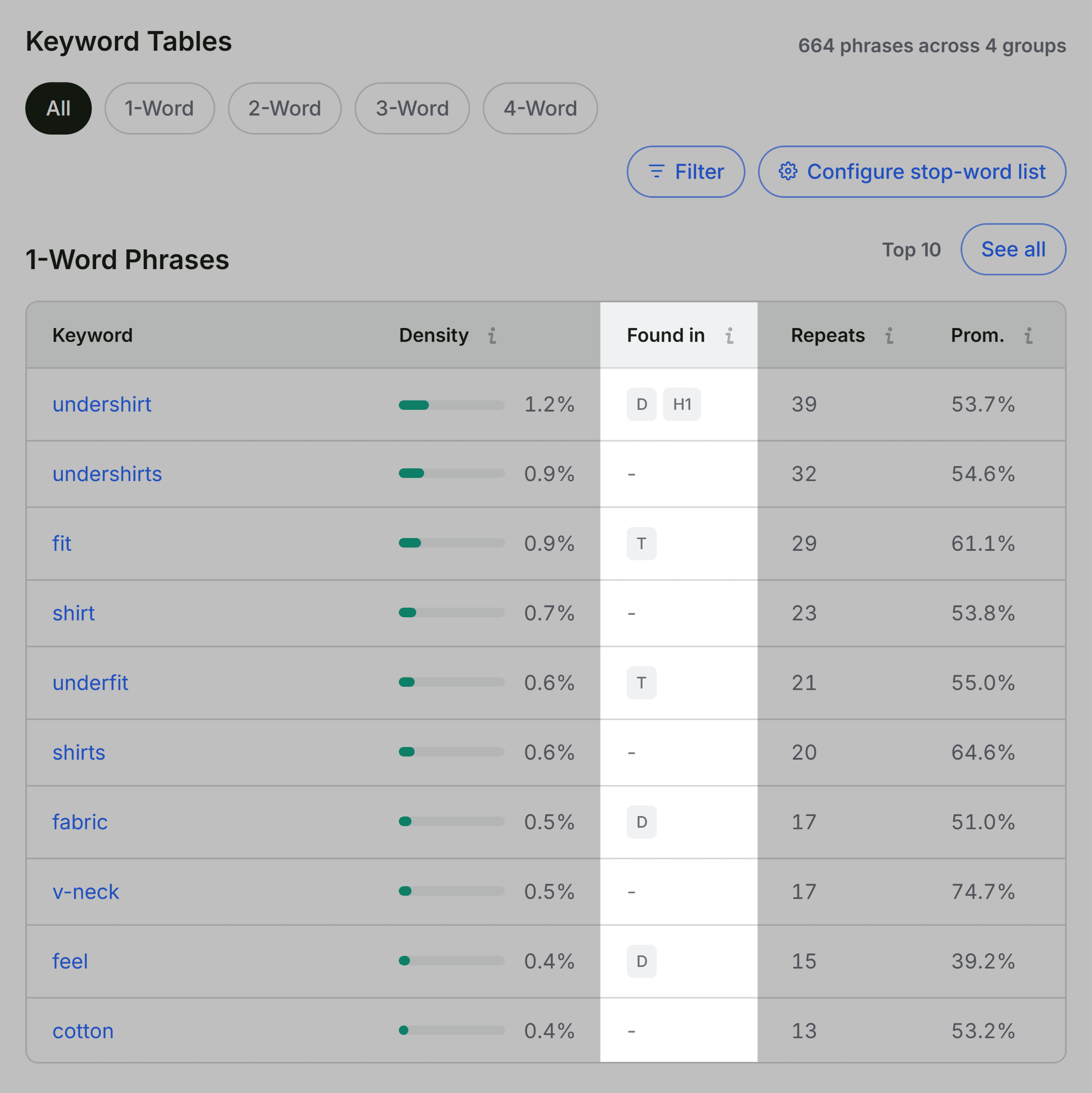
The core product terms are the most prominent: undershirt, fit, fabric, v-neck, cotton. That’s exactly what I’d expect for this page type.
Then I dig into the keyword tables for more detail.
The “Found in” column confirms those terms are showing up in the right places — “undershirt” appears in the meta description and H1, while “fit” and “underfit” both appear in the title tag.
Next, I scan the multi-word phrase tables for any missing or off-topic phrases.
Most reinforce the page’s topic: “the invisible undershirt,” “v-neck undershirt,” and “built to last.”
Some odd phrases, like “zoom zoom,” come from interactive elements and image labels in the HTML rather than the main product copy.
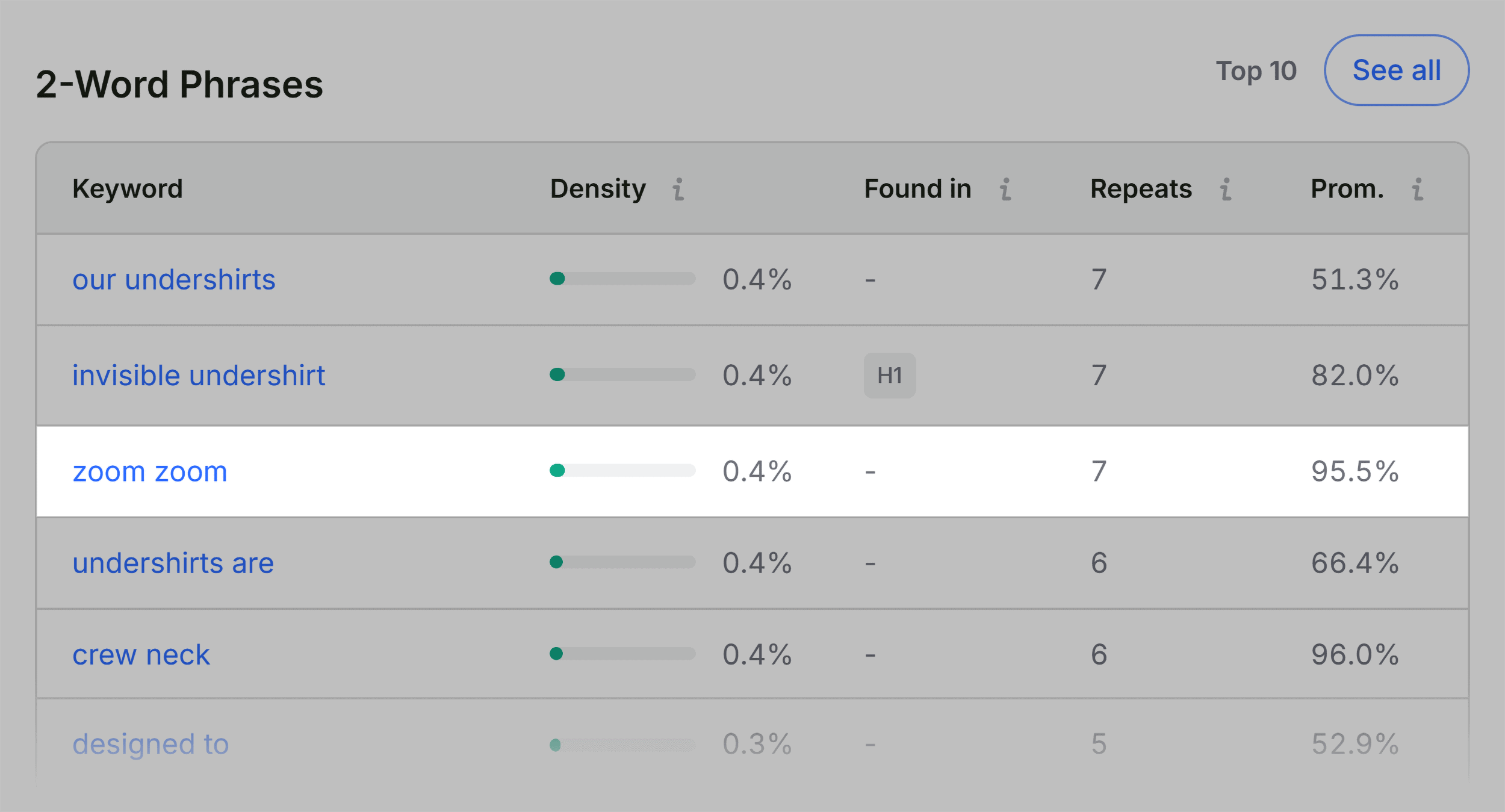
That’s normal — tools like SEOquake can pick up text from buttons, image labels, and other page elements, so widget text sometimes appears in the data.
Check Link Health in the Links Panel
Broken, vague, or unhelpful links can make it harder for search engines and users to navigate pages effectively.
The Links panel shows the status of all internal and external links on the page, including dofollow/nofollow, anchor text, and HTTP response codes.
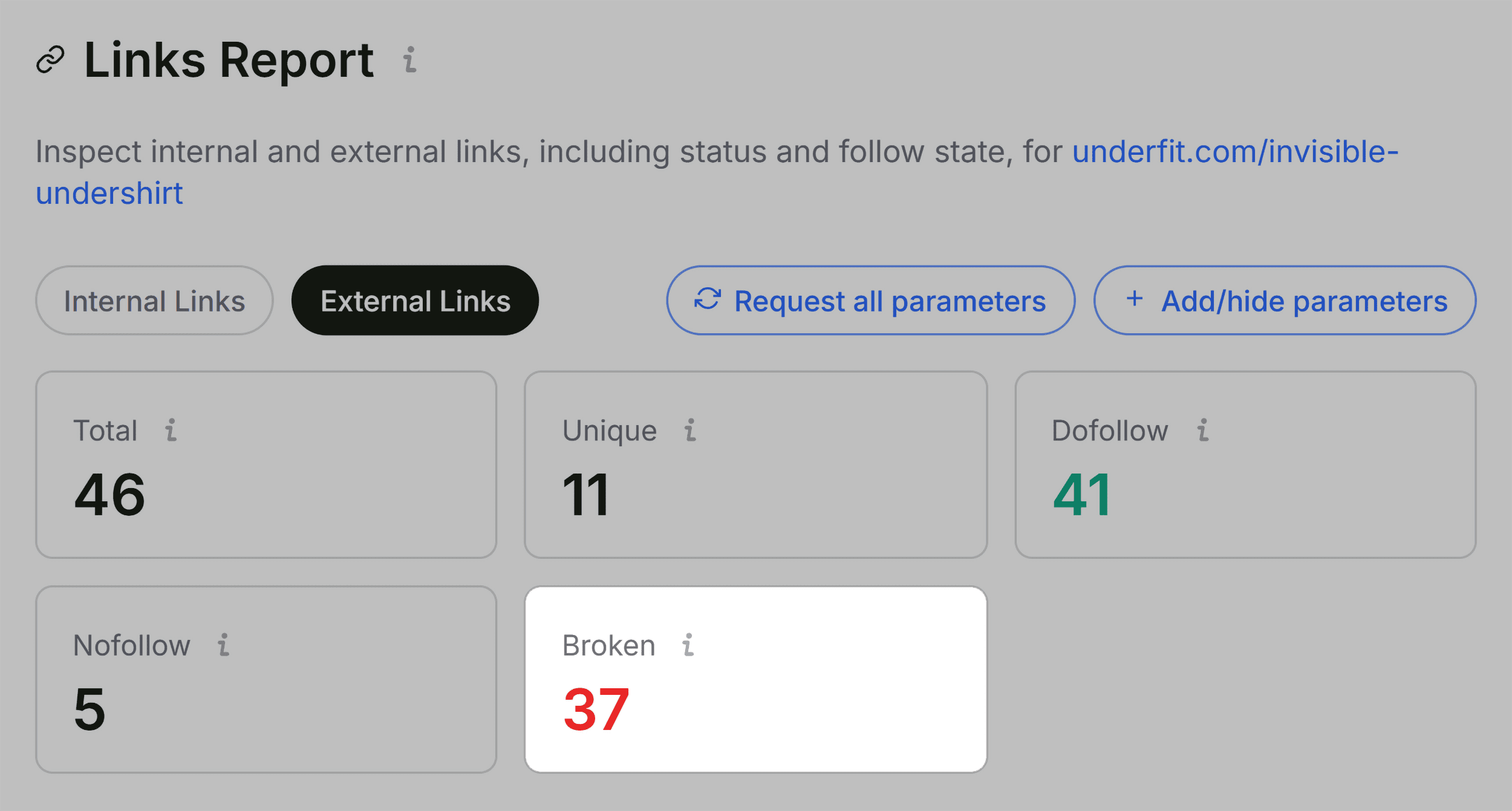
On UnderFit’s page, the report shows one broken internal link and 37 broken external links.
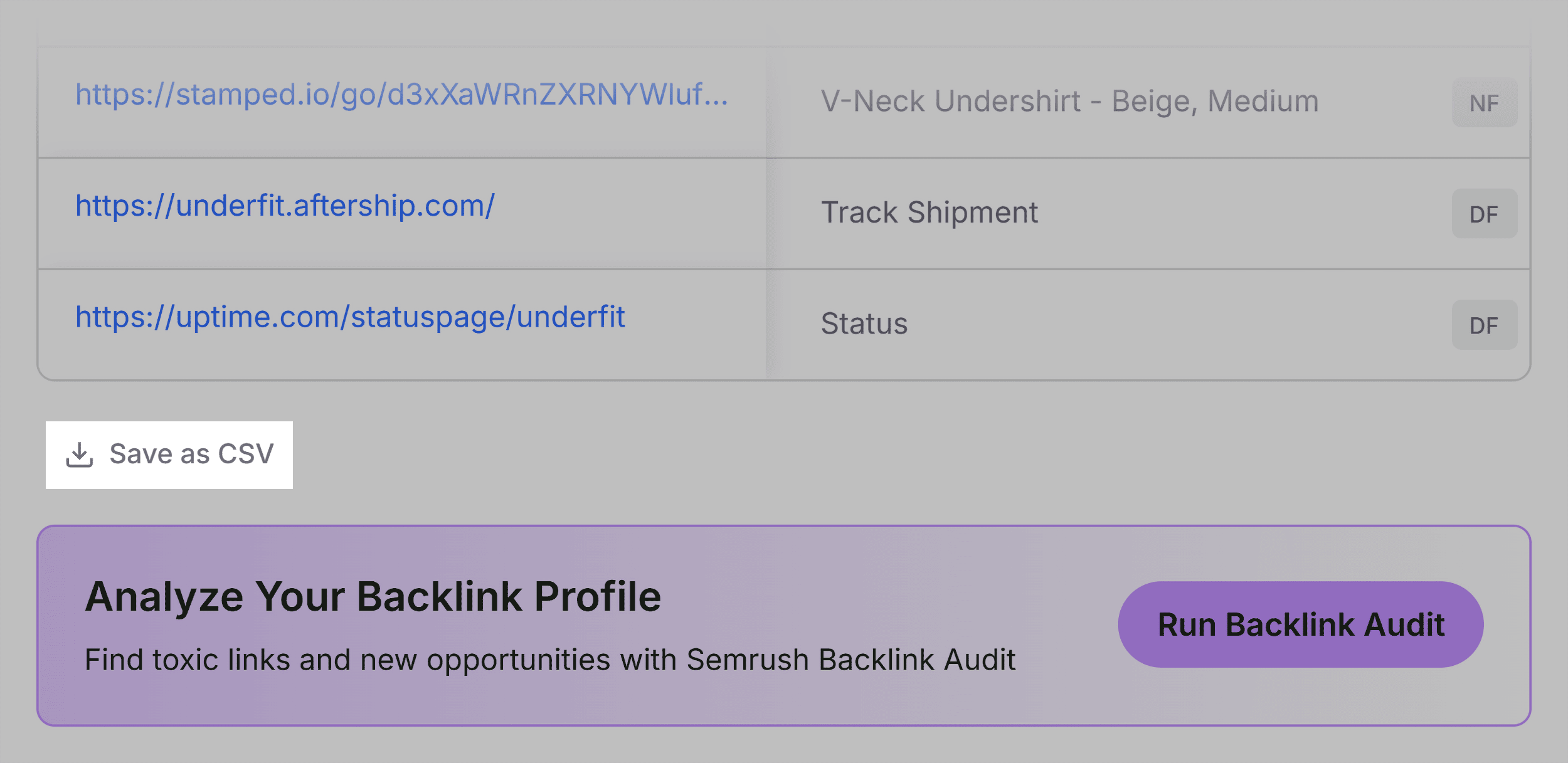
So I go to the External Links table to dig deeper — they’re mostly JavaScript links.
I’ll add those to the fix list to confirm whether they’re functional or actually problematic.
Decide on a Page Fix or Site Audit Using the Semrush Panel
I’ve now worked through the triage flags and have a list of issues to address on UnderFit’s product page.
But before I fix anything, I need to decide whether each issue is specific to this page or points to a broader site problem. The Semrush panel gives me the additional context I need to make that call.
By default, it shows domain- and page-level metrics, including:
- Semrush Rank: The domain’s organic visibility ranking
- SE Traffic: Estimated monthly organic search traffic for the domain
- Root Domain Backlinks: The domain’s total backlink profile
- URL backlinks: Total backlinks to the page
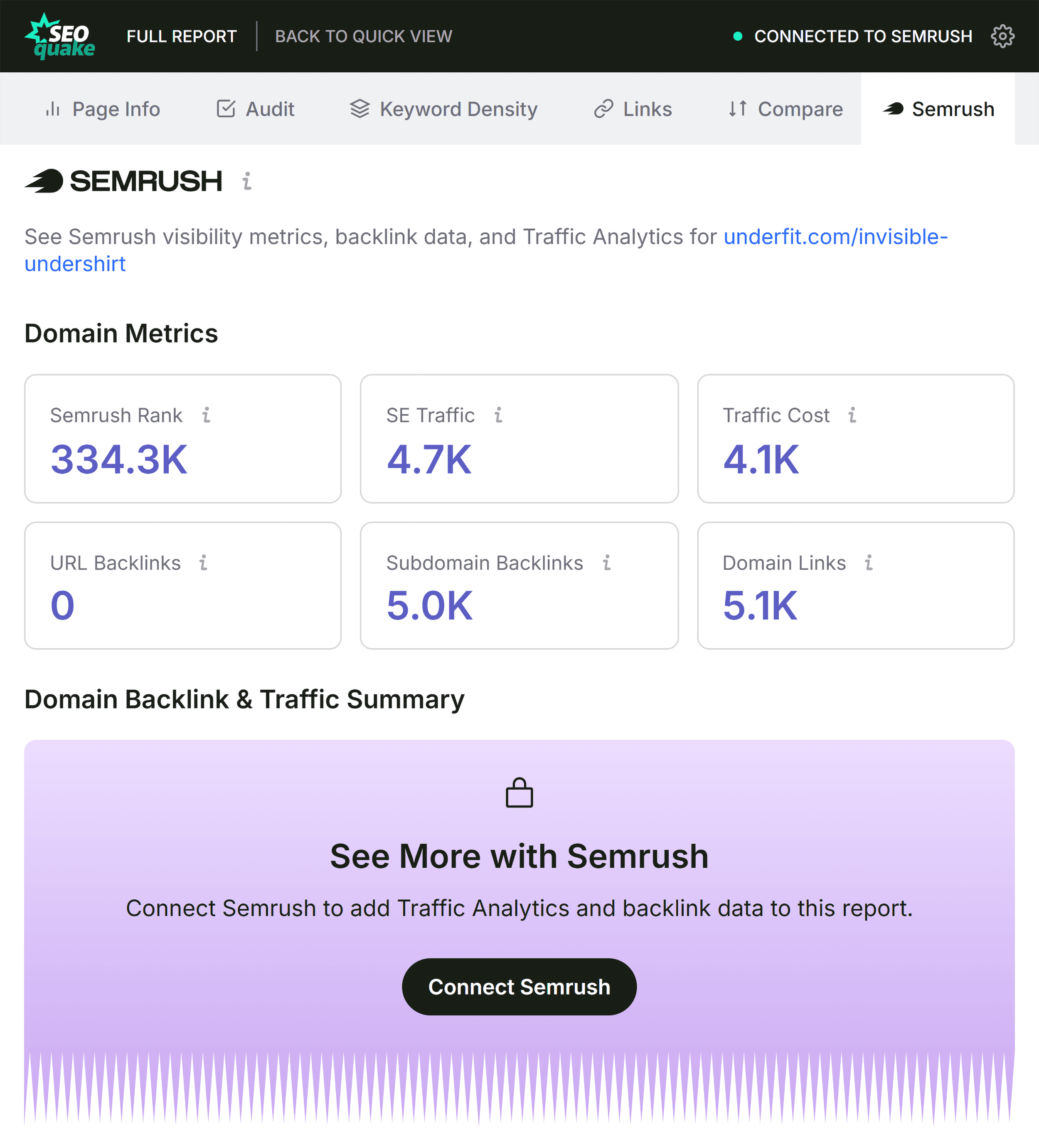
Optionally, I can connect SEOquake to my Semrush account to unlock deeper data.
This includes Traffic Analytics data (engagement metrics such as bounce rate, visit duration, and channel-level traffic) and detailed backlink reports.
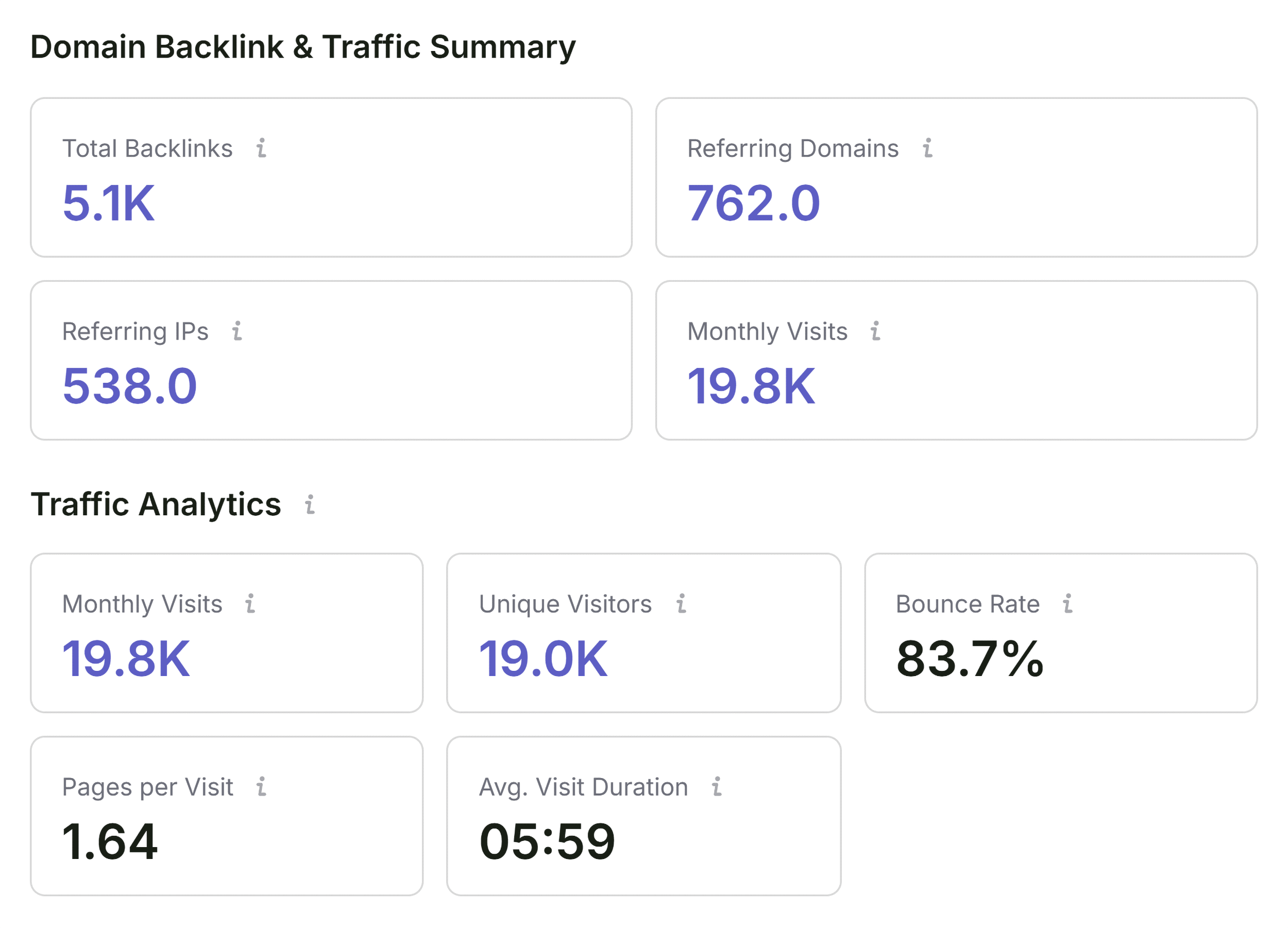
A weak page on a strong domain — like UnderFit, where the domain has solid traffic and a reasonable backlink profile — usually points to a content or page-level problem.
But some flags aren’t cleanly at the page level.
The XML sitemap warning, for example, is almost always site-wide, and JSON-LD errors might repeat across all product templates.
Those aren’t problems I can confirm or fix with SEOquake alone, so I’ll move to a full site crawl with a tool like Semrush’s Site Audit.
Diagnose Any Page in 3 Minutes with SEOquake
As you’ve seen, the SEOquake Chrome extension lets you audit any page in three minutes and walk away knowing exactly what’s working, what’s broken, and what to do next.
Install SEOquake from the Chrome Web Store and run your first audit today:
- Triage using the Quick View pop-up to catch obvious problems
- Diagnose the flags in the Full Report to understand what’s wrong
- Decide whether it’s a page fix or a site-wide issue
- Escalate to Semrush Site Audit when the problem is bigger than the page
To crawl your full site, start a free 14-day Semrush trial and get Site Audit access for 100 URLs per month.
Backlinko is owned by Semrush. We’re still obsessed with bringing you world-class SEO insights, backed by hands-on experience. Unless otherwise noted, this content was written by either an employee or paid contractor of Semrush Inc.